How to use Link

Search for articles or browse by category below

1. Introduction

This manual describes how to use Link Manager to manage a AddSecure Link system solution. For additional information, see Service Description: AddSecure Link.


Link Manager simplifies complicated matters without compromising on security. That said, planning is essential to ensure that your setup is as well-structured as possible.Keep the following items in mind:

  •  How many networks are necessary?
  •  Will you use mobile or wired connections?
  •  Will you use site-to-site VPN and IP addresses with subnets?
  •  Can you keep naming consistent, especially if many devices (500+) are being used?Aim to keep your setup as simple as possible, and avoid creating a new network unless there are specific security reasons for it.


To get started, you must create:

  •  A Link Network (see section 3.1)
  •  A Link Connection (see section 4)
  •  A VPN user access (see section 5.2)


In addition, specify which email addresses are to receive notifications (such as warnings) about the system; see section 3.3.


If you have any questions or comments, do not hesitate to contact our support team.
1.1. Menu bar

 238 views March 24, 2017 addsecure 1

1.2. Link Manager dashboard

 229 views March 24, 2017 addsecure 0

2. Using Link Manager

To be able to use Link Manager, you must be a Link Partner and have a Link Manager subscription. Contact our sales representative in your area for more information.

2.1. Logging in to Link Manager

 212 views March 24, 2017 addsecure 1

2.2. Changing your password

 241 views March 24, 2017 addsecure 0

2.3. Resetting your password

 178 views March 24, 2017 addsecure 0

2.5. Creating a new administrator

 190 views March 24, 2017 addsecure 0

3. Creating and configuring networks

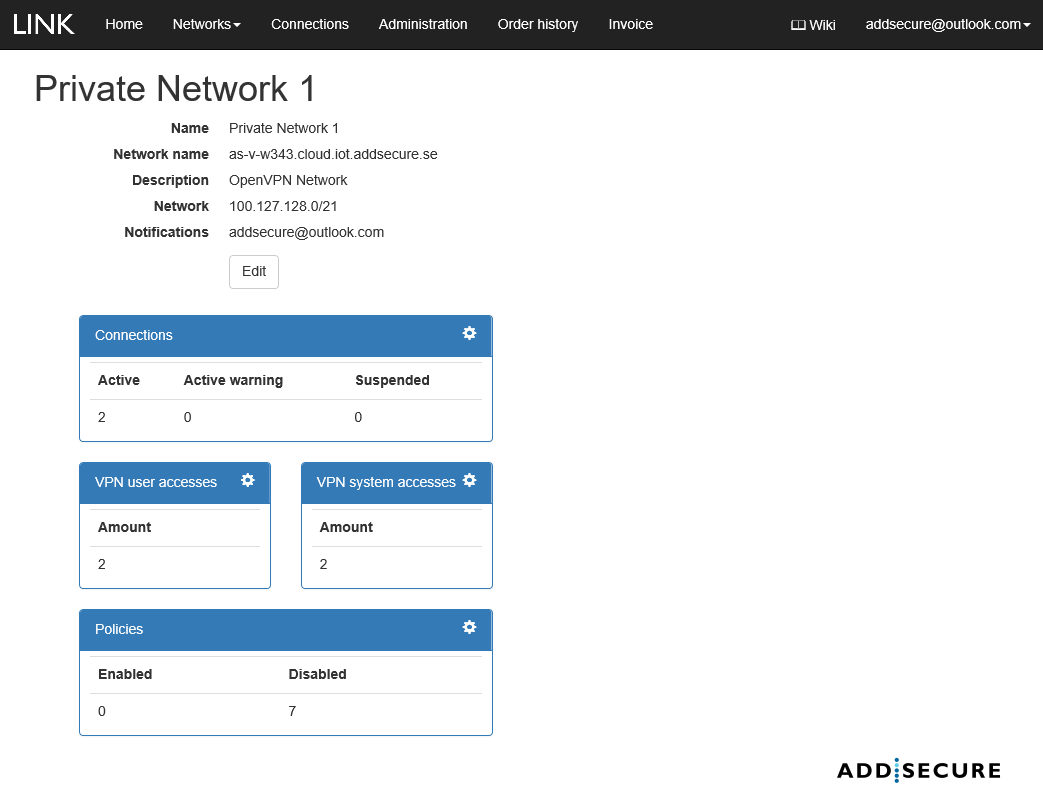
To find out more about a specific network, click Networks in the menu bar and then select the applicable network by clicking by its name. Here you get an overview of the network configuration and all attached devices and network accesses.


3.1. Creating a Link Network

 272 views March 24, 2017 addsecure 0

3.2. Adding a network policy

 259 views March 24, 2017 addsecure 0

3.3. Receiving notifications by email

 197 views March 24, 2017 addsecure 0

4. Creating a Link Connection

A Link Connection refers to the connection of a device to a Link Network. There are two ways of creating a connection depending on whether you are connecting via a mobile or an IP connection. For information about configuring and testing a Link Connection, see section 6.


4.1. Creating a Link Connection

 396 views March 24, 2017 addsecure 0

4.2. Ordering new SECURE SIM cards

 194 views March 24, 2017 addsecure 0

5. OpenVPN certificate


5.1. Creating a VPN system access

 485 views November 14, 2017 Hans Öberg 0

5.2 Creating a VPN user access

 391 views November 14, 2017 Hans Öberg 3

6. Configuring and testing

The process of configuring a Link Connection varies depending on whether you are connecting via mobile or IP. Mobile connections do not require specific hardware, but for IP connections, the hardware must support OpenVPN. For more information on getting started with OpenVPN, see section 5.


6.1. Configuring a VPN system access

 312 views November 14, 2017 Hans Öberg 0

6.2. Testing a VPN system access

 284 views November 14, 2017 Hans Öberg 1

6.3. Configuring a Link Connection

 282 views March 24, 2017 addsecure 0

6.4. Testing a Link Connection

 240 views March 24, 2017 addsecure 1

7. Installing and configuring Link Access on Windows

The below information is not comprehensive. The below procedures use OpenVPN’s own client, but other programs are available that can also be used to remotely access the OpenVPN network.

Before starting, contact your Link Manager administrator and ask them to create a Link Access subscription and generate the email with the certificate. For more information, see section 5.


7.1. Installing the OpenVPN client

 423 views March 24, 2017 addsecure 0

7.2. Installing the OpenVPN certificate

 394 views March 24, 2017 addsecure 1

7.3. Connecting to the OpenVPN network

 335 views March 24, 2017 addsecure 0

7.4. Disconnecting from the OpenVPN network

 175 views March 24, 2017 addsecure 0

8. Network policies


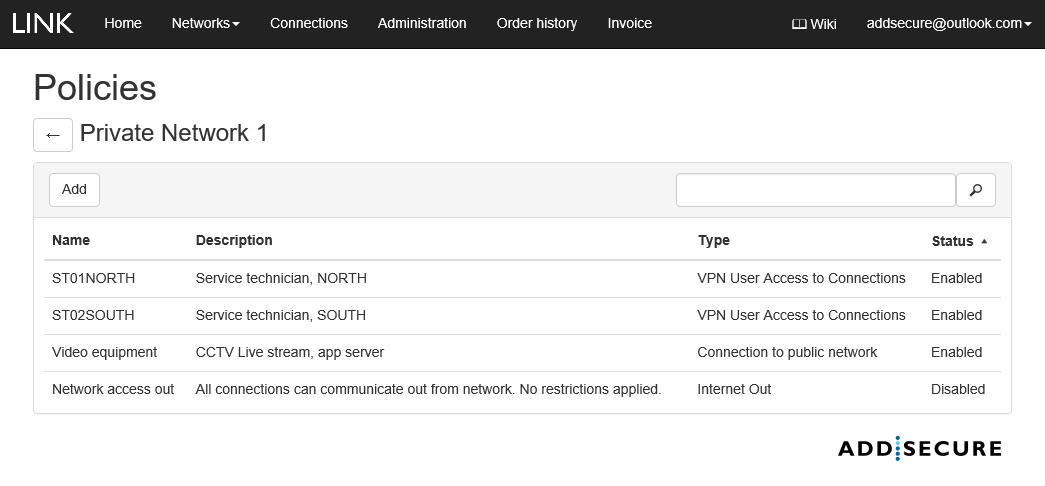
Policy rules are configured on a Link Network basis, and it is activated by the customer administrator in Link Manager. Policies rules can easily be granted or revoked as needed.


Policy rules are sorted by status, active (Enabled) or deactivate (Disabled), and if the policy overrides another policies. The most significant policy is at the top of the grid.


For more information about how to add a network policy, see section 3.2.


Available policies:

  1. Internet out, all Link Connections in a Link Network can open a session to Internet
  2. Connection to Internet, selected Link Connections can open a session to Internet
  3. Connection to public network, selected Link Connections can reach specified IP addresses on Internet
  4. Connection to Connection (P2P), selected Link connections can communicate with each other using NAT IP addressing
  5. VPN user access to Connection, selected VPN user access can only communicate with selected Link Connections


8.1 Internet out

 217 views November 13, 2017 Hans Öberg 0

8.2 Connection to Internet

 199 views November 13, 2017 Hans Öberg 0

8.3 Connection to public network

 203 views November 13, 2017 Hans Öberg 0

8.4 Connection to connection (P2P)

 242 views November 13, 2017 Hans Öberg 0

8.5 VPN user access to connection

 243 views November 13, 2017 Hans Öberg 1

9. Video lessons


If you have a proposal on a video content for a particular function, please send the proposal to us Get in contact.

Lesson 1, ordering SECURE SIM

 172 views November 16, 2017 Hans Öberg 0

Lesson 2, activation of SECURE SIM

 177 views November 14, 2017 Hans Öberg 0

Lesson 3, two-factor authentication

 194 views November 15, 2017 Hans Öberg 1